How Claude Works in Chrome: From Your Instructions to a Finished Task
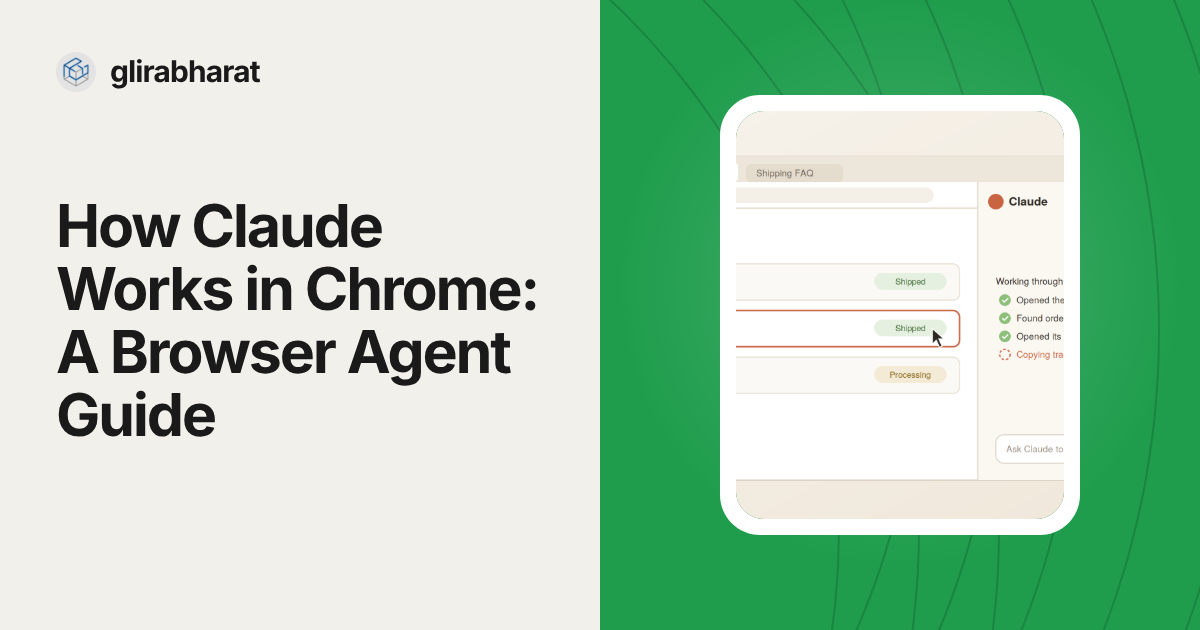
Most AI assistants can tell you what a website says. Claude in Chrome goes a step further. It can open the site, look at what is on the page, click the right button, fill in the form and move on to the next step. Think of it less as a chatbot that reads web pages and more as an assistant sitting beside you in your own browser, doing the clicking while you decide what matters.
What Claude in Chrome Actually Is
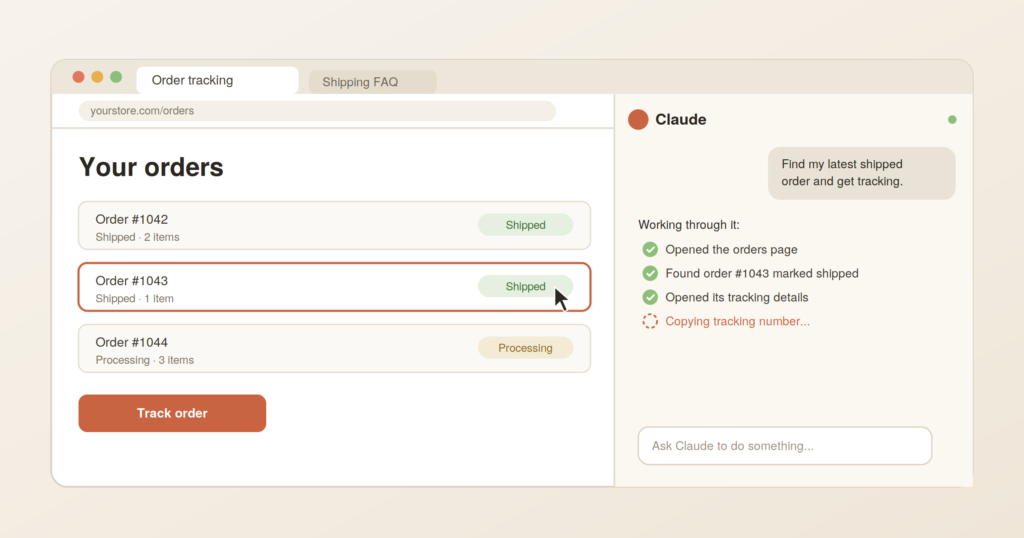
Claude in Chrome is an extension that adds a Claude panel to the side of Google Chrome. You stay in the same window and the same tab while Claude works on the page you have open. Because it runs inside your own browser, it uses the profile you already have: your bookmarks, your extensions and the sites you are already signed in to.
It works in Chrome and other Chromium-based browsers such as Edge and Brave. It does not run in Firefox or Safari.
The Four-Step Loop Behind Every Action
When you give Claude a task, it does not follow a fixed script. It works in a loop. It reads the page, plans the next move, takes one action and then checks whether that action did what it was meant to do. If a button did not respond or a form shows an error, it adjusts and tries again.
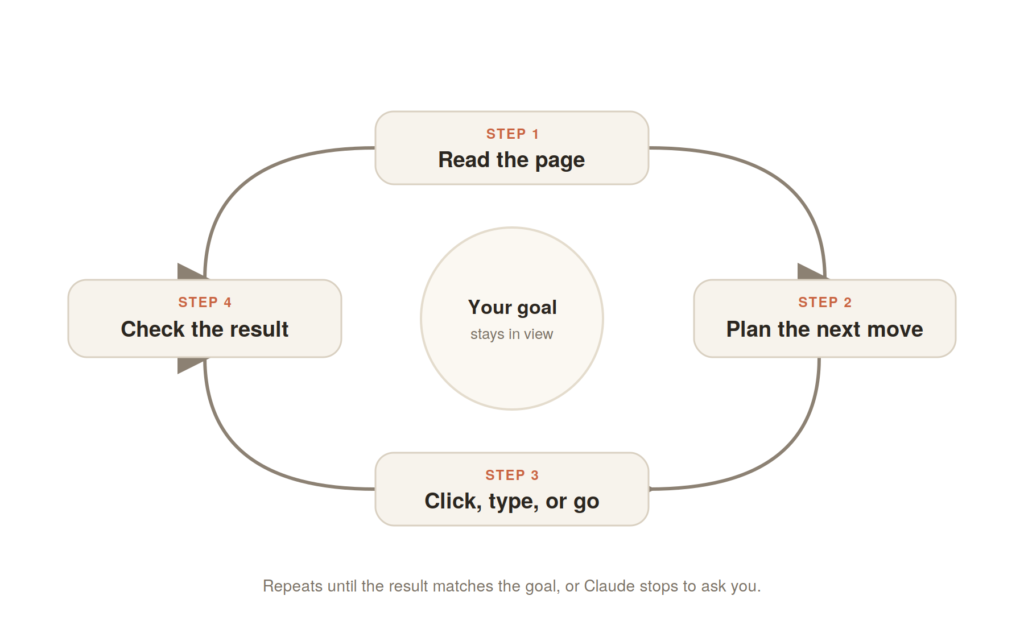
Reading the page before every action is what lets Claude cope with things that break a rigid automation script, such as a cookie banner that pops up or a button that moved to a new spot. The trade-off is that Claude works from what it can see. It can misread a page or move too quickly, which is why the checking step matters and why you should stay involved for anything important.
What It Can Do
Claude in Chrome can read text and layouts, click buttons and links, type into fields, fill out forms, open new tabs and switch between them. That makes it useful for multi-step work that spans several pages, such as checking the status of a set of orders, comparing prices across product pages, or collecting details from a few sources into one summary you can review.
You Stay in Control
The extension gives you two permission modes, so you can match the level of autonomy to the task.
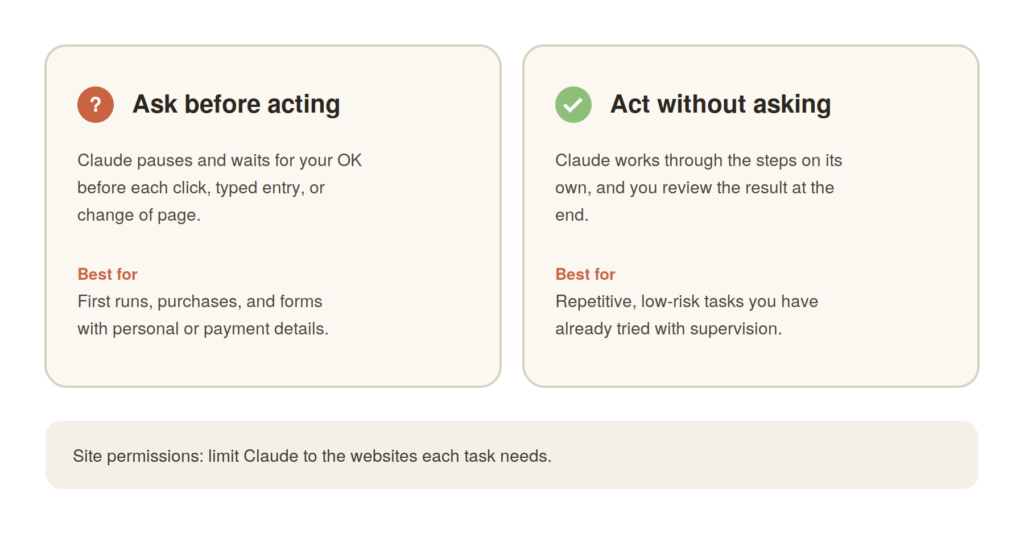
In Ask before acting mode, Claude requests your approval before each action. This is the right default when you are starting out, or when a task involves money, personal information or anything you cannot undo. In Act without asking mode, Claude works through the steps on its own and you review the result at the end. Save that mode for repetitive, low-risk work you have already watched run once.
You can also control which websites Claude is allowed to interact with through the extension’s site permissions. Keep the list short and limit it to the sites a given task needs.
How to Brief Claude So the Task Gets Done Right
Claude does its best work when it knows what finished looks like. A vague request like “check my store” leaves too much open. A useful brief answers four questions.
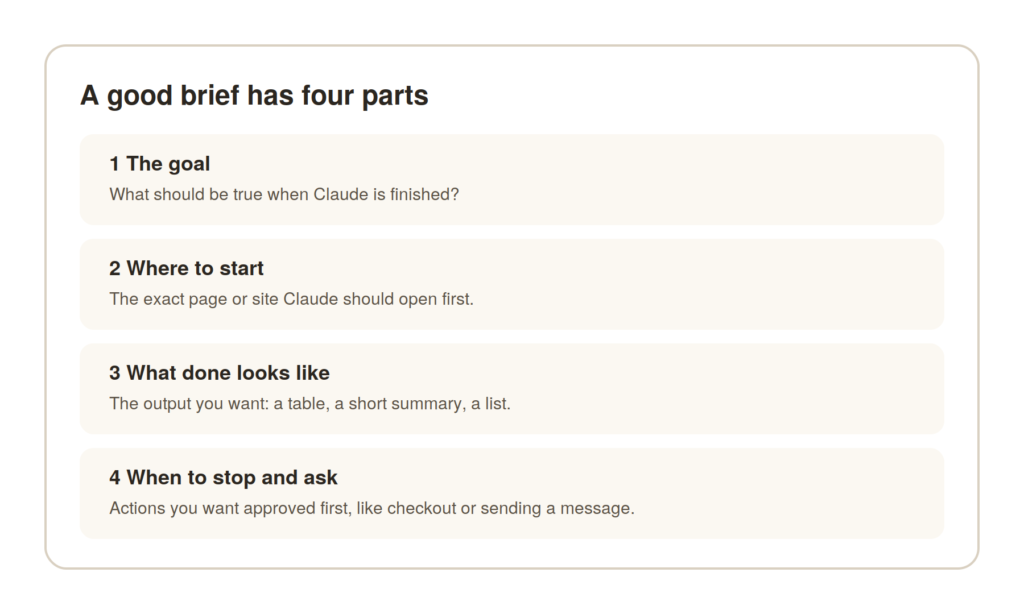
First, state the goal in terms of the result you want. Second, name the page or site to open first, so Claude does not have to guess. Third, describe the output you expect, whether that is a table, a short summary or a list of links. Fourth, list the actions that need your approval before Claude takes them, such as submitting a form, making a purchase or sending a message.
“Open the orders page on my store dashboard. Find every order marked shipped in the last seven days and give me a table with the order number, customer name and tracking number. Do not change any order status. If a tracking number is missing, stop and ask me.”
That single paragraph covers all four parts. Claude knows where to start, what to return, what it must not touch and when to pause. You get a result you can check in a minute instead of a surprise you have to undo.
Where You Still Need to Step In
Claude in Chrome is capable, but it is not a substitute for your judgment. Review anything that changes a live website, completes a purchase or sends a message on your behalf. Check important numbers against the source before you rely on them. Sites change their layouts, so a set of instructions that worked last month may need small adjustments. And if a site asks for a login, a security check or a verification code, you will usually need to complete that step yourself.
Using Claude Code With the Browser
Developers can take this further. Claude Code can connect to the Chrome extension, so an agent that has just changed a web app can open it in a real browser and confirm the fix works. You can start a session with the Chrome connection enabled using claude --chrome.
The Short Version
Claude in Chrome works best as a capable helper that follows clear instructions under your supervision. Give it a specific goal, a starting point, a definition of done and a list of actions to check with you first. Do that, and it can take a large share of repetitive browser work off your plate.
Want help setting up browser-based AI workflows for your business? Explore what Glira Bharat AI can build for you at glirabharat.com/contact.
Frequently Asked Questions
Which browsers does Claude in Chrome support?
It works in Google Chrome and other Chromium-based browsers such as Edge and Brave. It does not run in Firefox or Safari.
Can Claude make purchases for me?
It can navigate to a checkout page, but keep it in Ask before acting mode and confirm every purchase yourself.
Does Claude use my logged-in accounts?
Yes. It works in your own Chrome profile, so it can reach sites you are signed in to. Limit site permissions to the sites each task needs.

Writing about websites, AI-era SEO and chatbots for Indian businesses at Glira Bharat, Coimbatore.